ONLINEHOURS TEAMS CONNECTOR
Your Teams session. Connected.
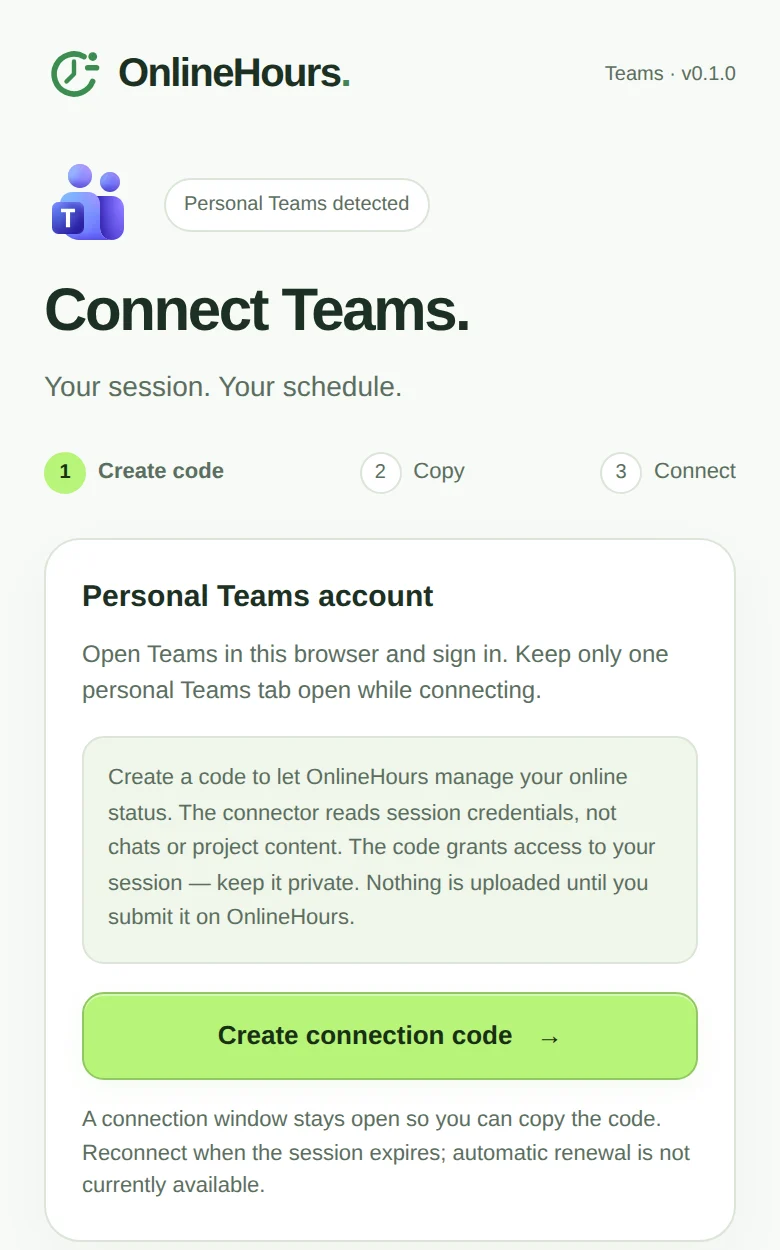
Our free Chrome extension for Teams in your browser (teams.live.com). No admin approval and no extra Microsoft permissions: create a private code, connect your session and manage it from OnlineHours.

The extension is free. Cloud scheduling requires an OnlineHours account with an active trial or subscription.
Second option, not recommended: Microsoft sign-in ↗
Free, from the Chrome Web Store. Separate from the Slack & ClickUp connector.
- 1
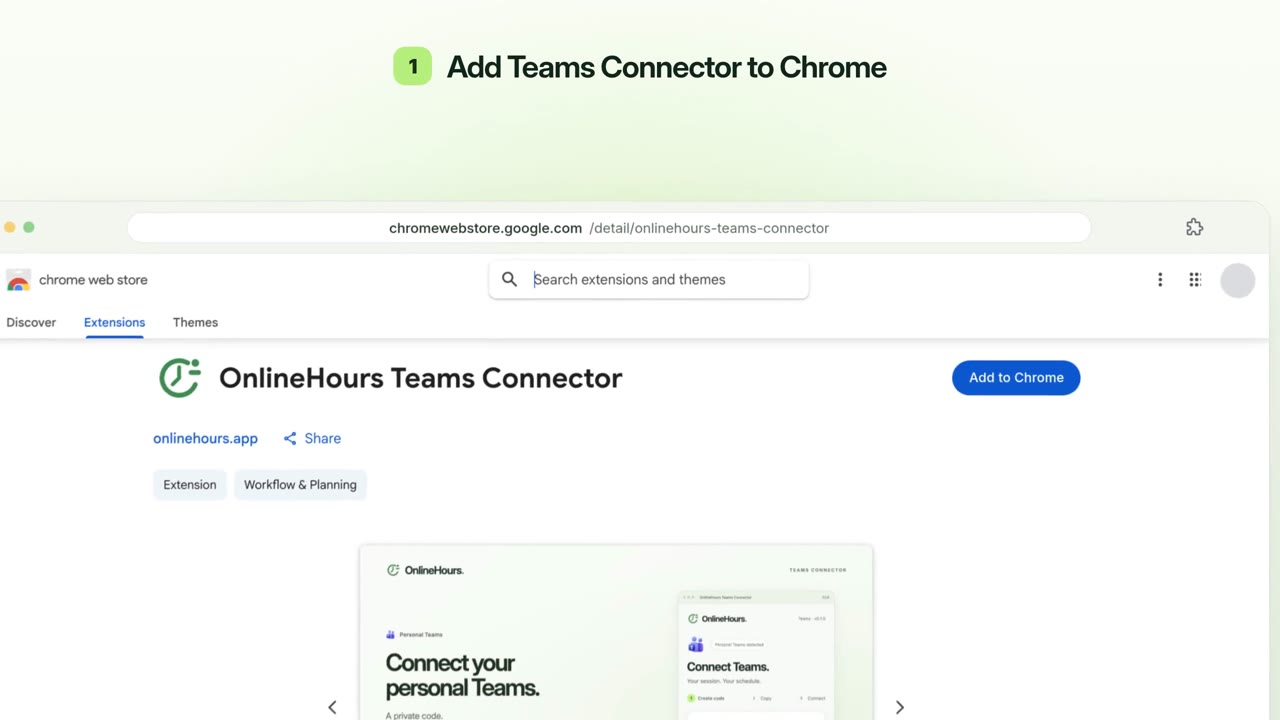
Add Teams Connector to Chrome
Install OnlineHours Teams Connector from its own Chrome Web Store listing. It is separate from the Slack & ClickUp connector.
- 2
Open your personal Teams
Sign in at teams.live.com in Chrome. Open OnlineHours Teams Connector and create your private connection code.
Open personal Teams - 3
Copy, then connect
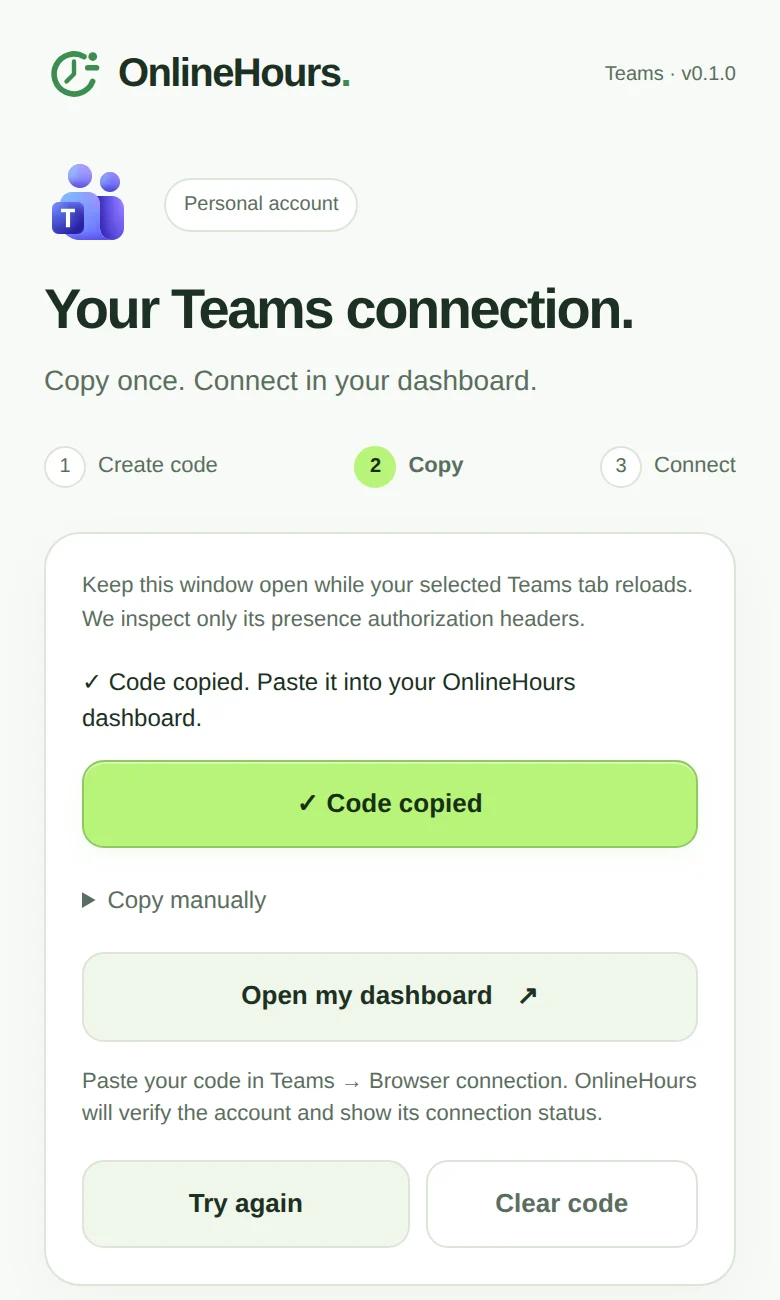
Wait for Code copied, then use the dashboard link in the extension. Choose Teams Connector and paste the code. We check the account before saving it.
- 4
Choose hours, then check your status
Connections start paused. Start a session or save a schedule, then check the reported status. The dashboard shows when your session expires; create a fresh code to reconnect.
Session-based access. No automatic session renewal or fixed coverage duration. Work accounts use Microsoft sign-in; organization policies still apply.